To activate your Webkul Modules, you need either an Envato Purchase Code or a Webkul Store Order ID.
For Envato Purchases:
If you purchased the plugin from Envato (CodeCanyon), you can use your Purchase Code to register and generate your license key.
If you do not know where to find your Purchase Code, follow this official Envato Guide.
For Webkul Store Purchases:
If you purchased the plugin directly from the Webkul Store, you can use your Store Order ID to register and generate your license key.
How do I activate Webkul Modules?
Please follow the steps below to activate the plugin once it has been successfully installed:
Step 1: Log in to your WordPress store account.
Step 2: Navigate to Webkul WC Addons, then choose the addon.

You can also activate the module in your WordPress admin panel.
Steps:
1. Navigate to Settings – Open the module’s specific settings page in the WordPress admin panel.

2. Enter License Key – Paste the generated key into the license key field and click Validate.

3. Successful Activation – Your module is now fully functional!

Once the plugin is activated, the status will be updated as approved.
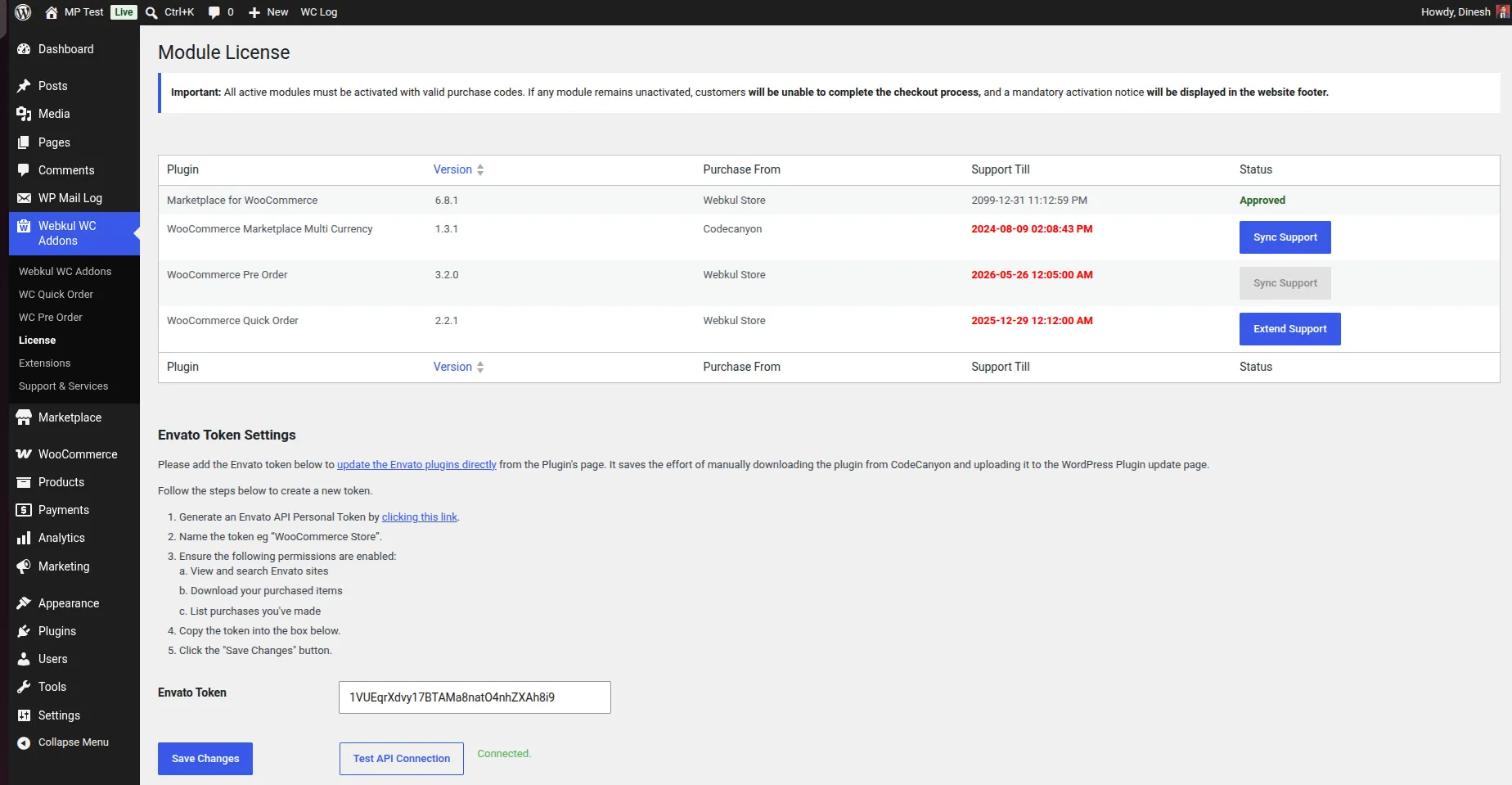
Important Note:
- Our licensing system supports up to two domains per license.
- If you have already used the license for two domains, when attempting to use it for a third domain, the system will display a list of the recently used domains.
- You will then have the option to remove one of the existing domains and add a new one.
Note: Even if your plugin support has expired, you can try activating it using the purchase form and selecting the correct purchase source.
In this case, the plugin gets activated successfully but still shows as expired.
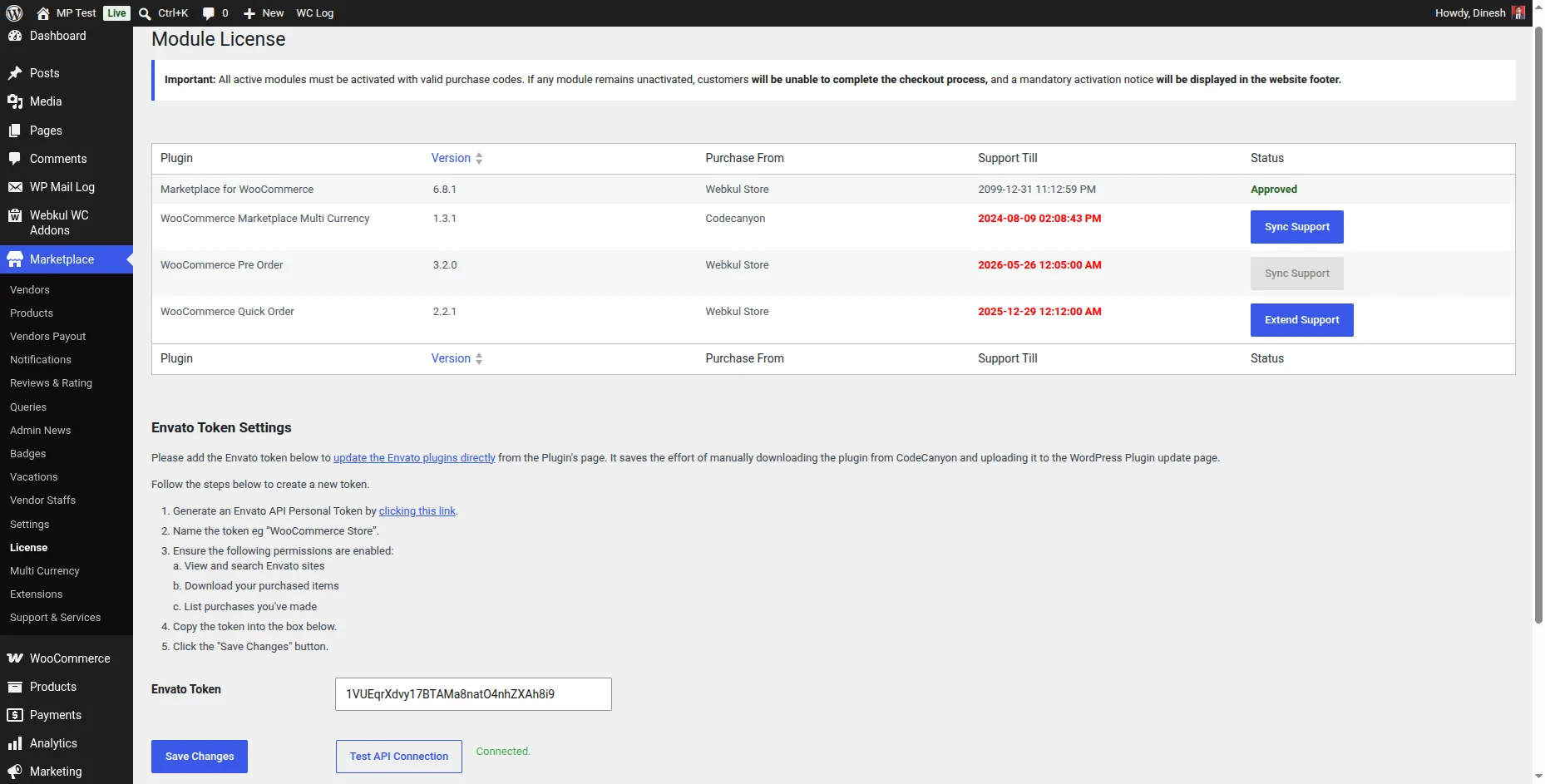
So, that was how to activate a Webkul Modules using a license key?
Also, you can check a complete list of WordPress and WooCommerce Plugins that can help enrich the features of your webstore.

Be the first to comment.