
As the online marketplace is growing up day by day we are sharing our new ideas and features. Recently we have introduced the “Opencart Marketplace Multivendor Module“.
In this module, some new features are added now. We are introducing new features of the “Opencart Marketplace Multivendor Module”.
It contains a notification feature for admin and seller, mass payout by PayPal, seller-customer switcher button, product quantity restriction, and seller category restriction feature.
In this feature, the admin can assign categories to the sellers. Now, sellers can only add the products to the assigned category. If the admin has assigned two categories to a seller then the seller can only add products of these two assigned categories.

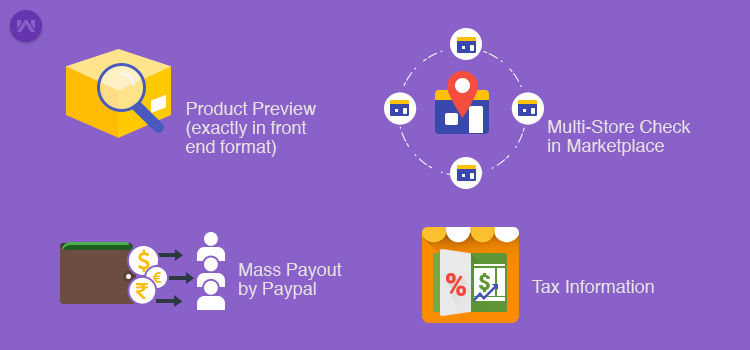
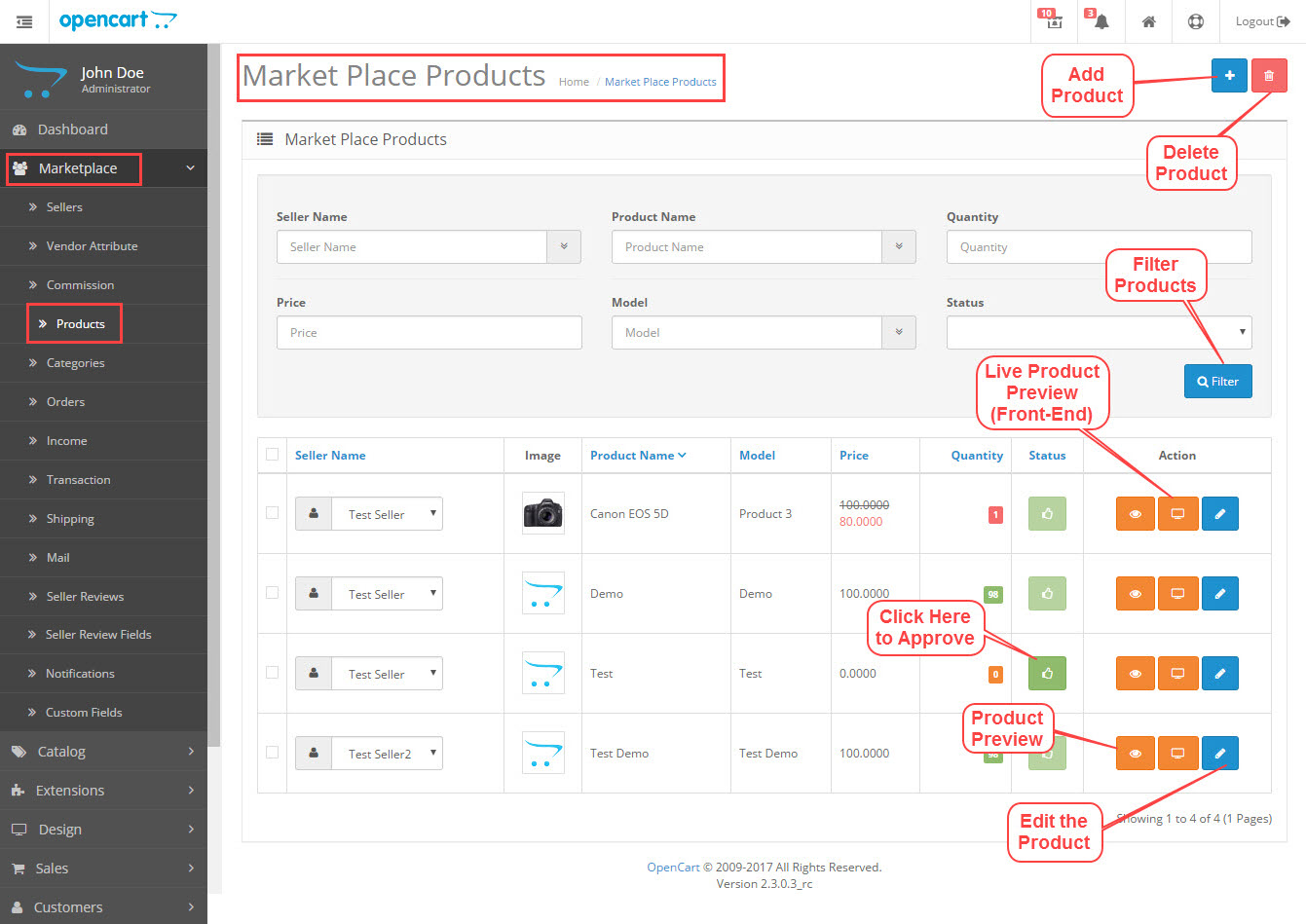
Admin can see any product on the front end. Admin has to click on “Live Product Preview Button”. “Live Product Preview Button” will appear on the Product page in the Marketplace section. In this feature, it is very easy to see a product live on the front end for admin.
Under this section, the admin can configure the settings for an individual marketplace store. The admin can make multiple stores and make settings for all marketplace stores. For example, if you have 3 stores A, B, C then you can configure all the 3 stores with different settings.

“Mass Payout By PayPal” button allows admin to pay many sellers in one click. This button release payment to the seller’s PayPal account. Many numbers of payments can be completed in a short time. So now no need to pay sellers one by one. Admin needs to integrate PayPal configuration in the admin panel.
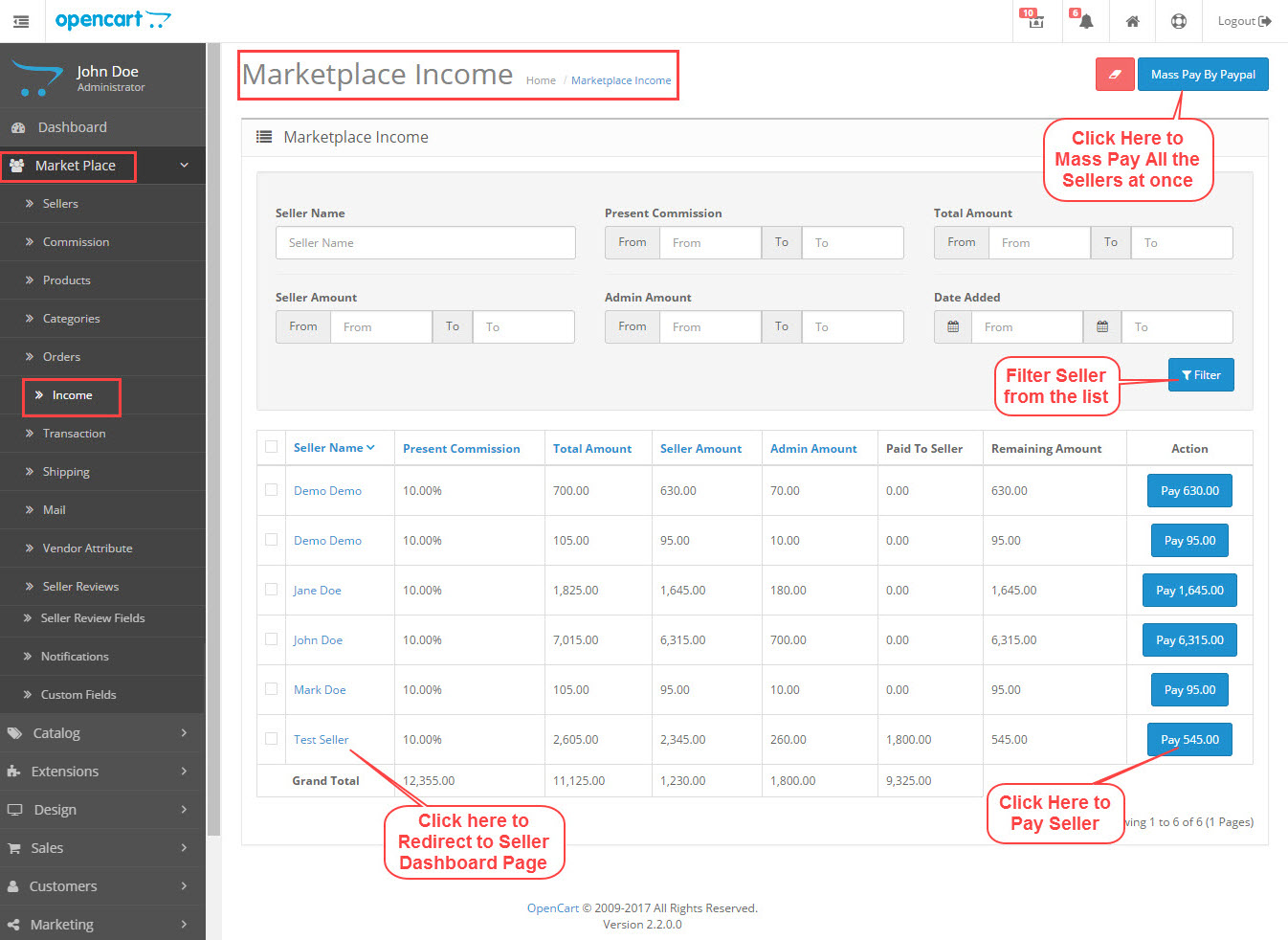
Credentials of PayPal id provided by sellers validated through PayPal API. If appears wrong, it will give an error message. Payment does not go to the seller’s account if the PayPal id is wrong.

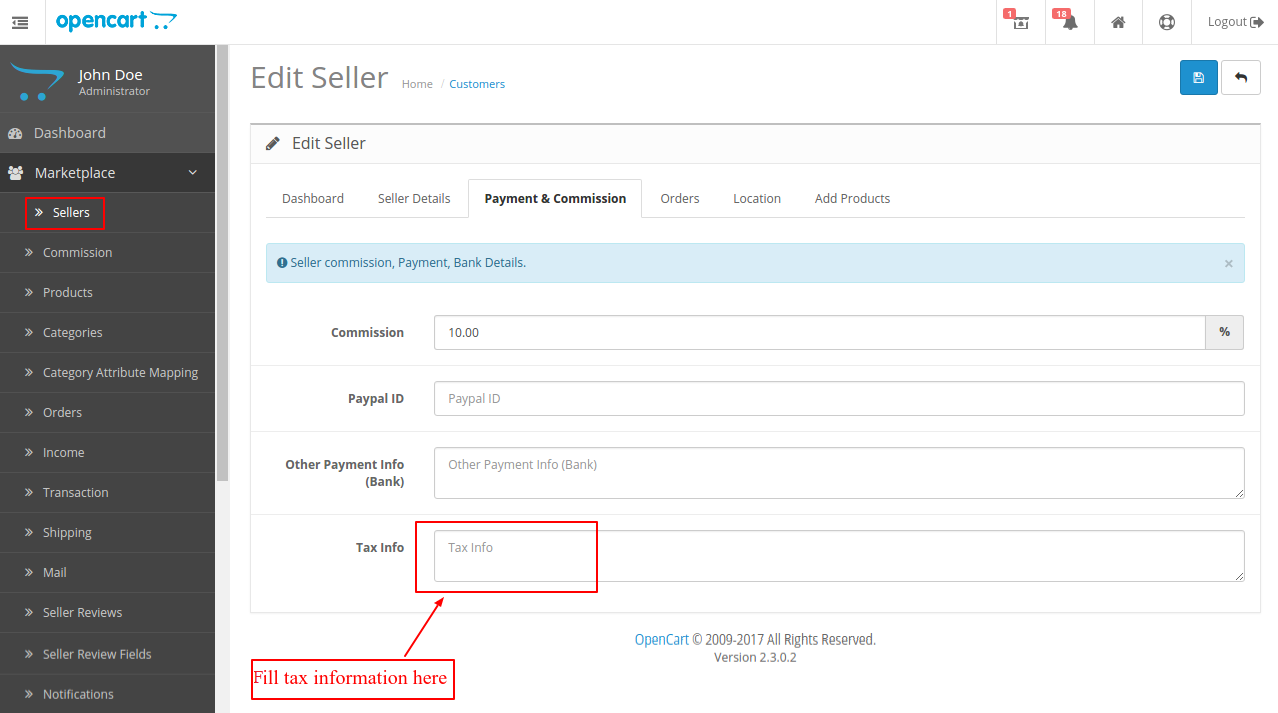
Tax information option added now. Admin can fill in Extra information of taxes for a particular seller. Admin can fill in tax-related references, remarks, and other things.
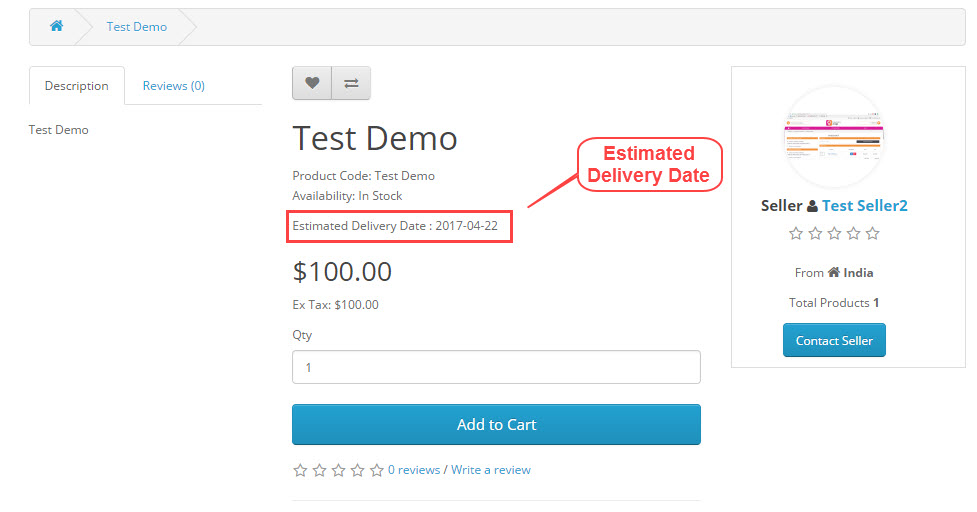
Now Customers can see the estimated delivery date for all the products. They need to enter the zip code on the product page and they will see the estimated date of delivery for this product. For example: when a customer filled the zip code on the product page, he can see “Estimated Delivery Date” on the same page.
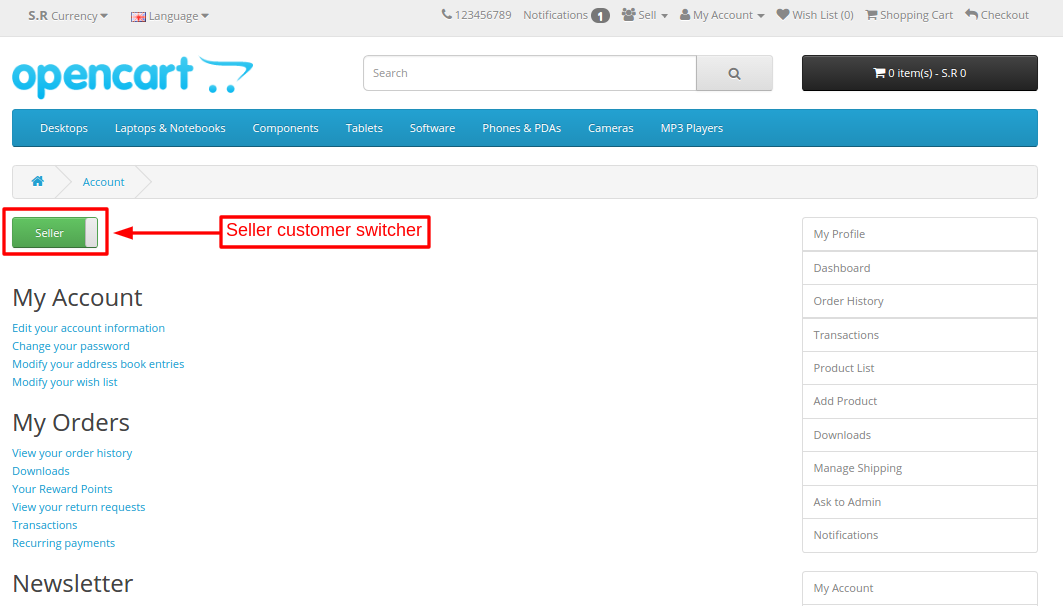
By Clicking on the switcher button a seller can directly switch to the customer panel. A customer can also switch to Seller (Only if registered as a seller). It means the Seller-Customer switcher button works between Seller and Customer.
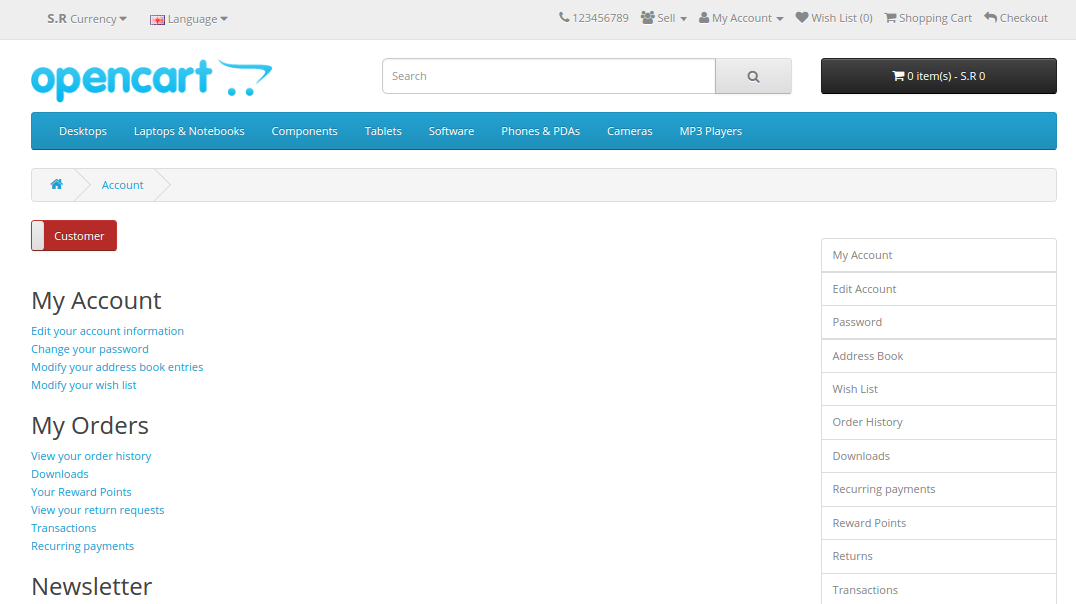
When the seller switched as a customer then the section of the seller account will be hidden.
The admin can map the attribute to the category for the sellers. When a seller will add a category to the product, only the attribute of that category will show. For mapping of categories, the admin needs to add or edit attribute mapping.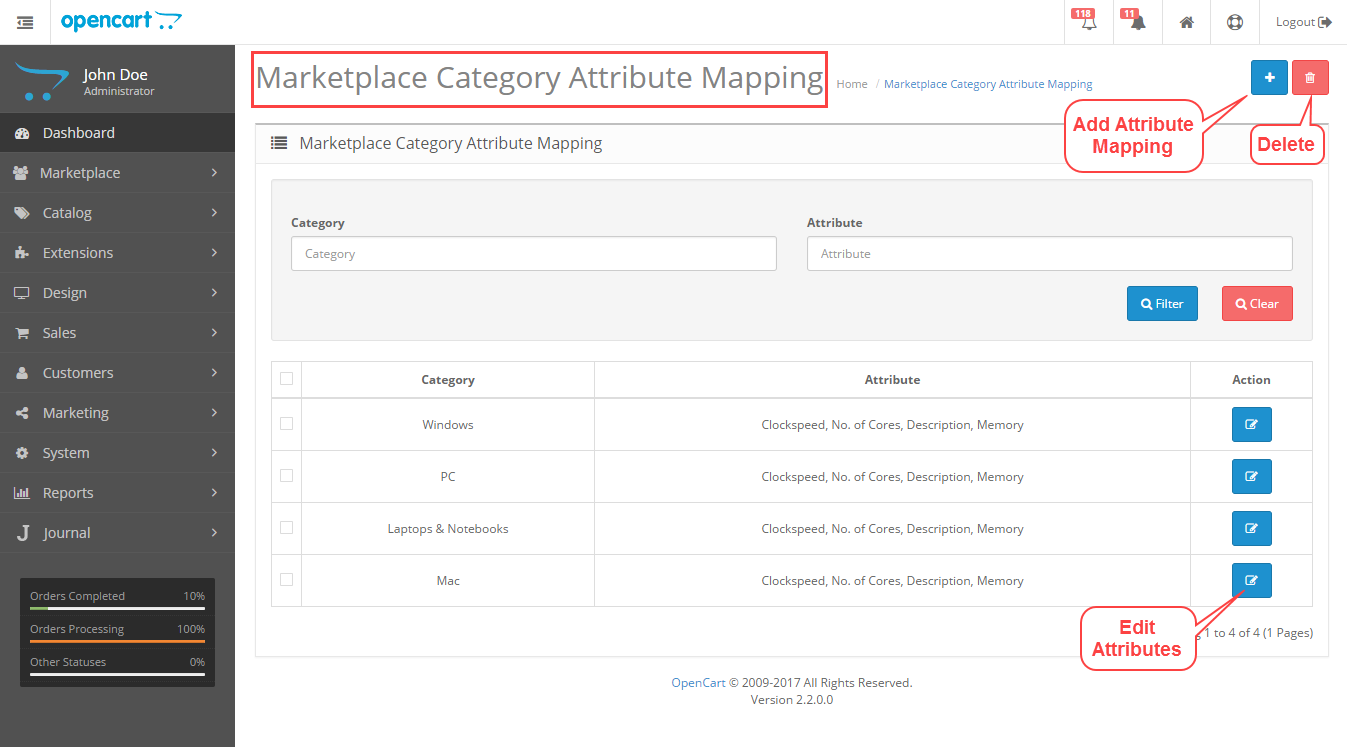
After clicking on the edit button, the admin needs to select the category and the attribute for the selected categories.

The admin can add many fields for the seller reviews. The admin can also delete or filter the field according to the need.
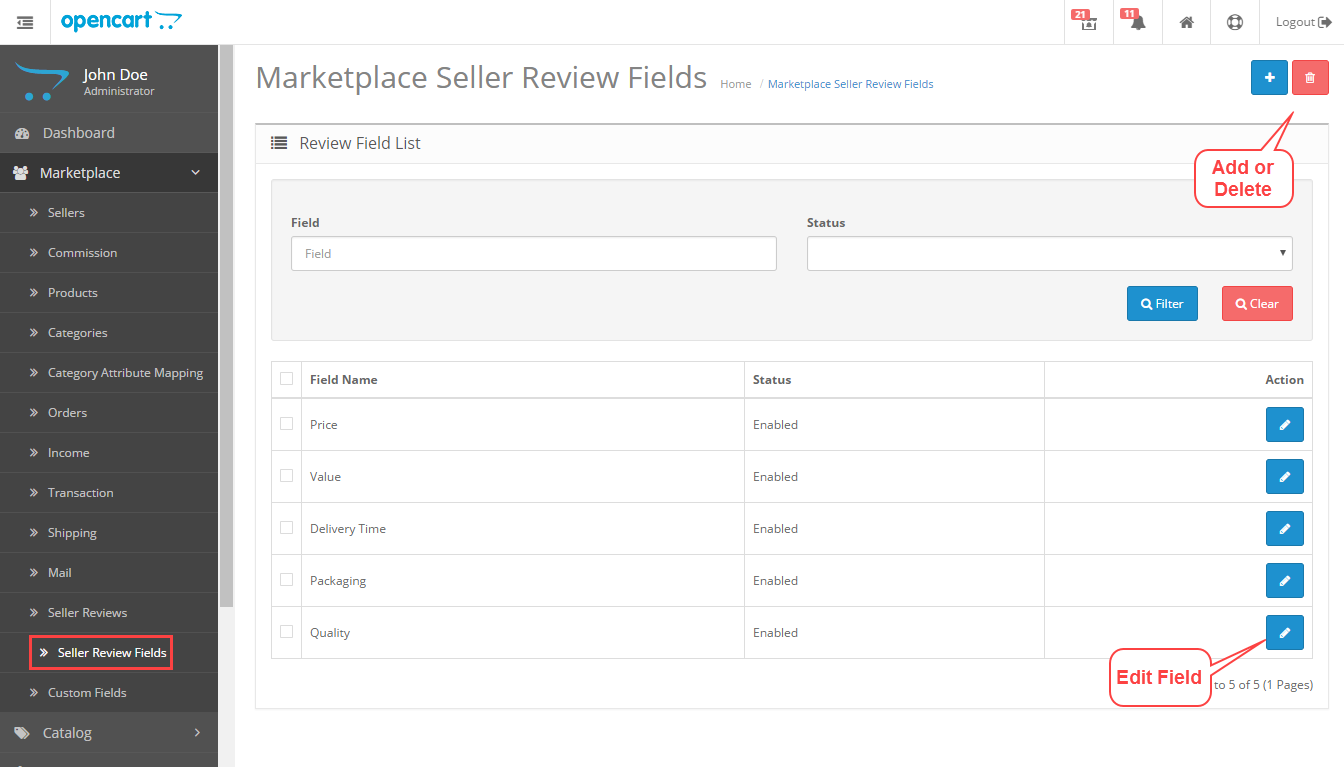
After clicking on edit, the admin can add new review fields for the customers.
After setting reviews fields from the admin end, it will look at the front end as follows:

The admin can set the commission will be added to the product price or not. If this option is enabled then the commission is included in the product price else commission will be added to the product price.
For example: If a product for the amount of $100 and commission is 10% and this option is enabled then the commission is included in $100 else the product price would be $110.
When a seller clicks on add category button, a pop-up will open for the selection of the category. The seller can select the category from the pop-up. If a child category was selected then the parent category was automatically selected. The seller can also deselect the selected category.

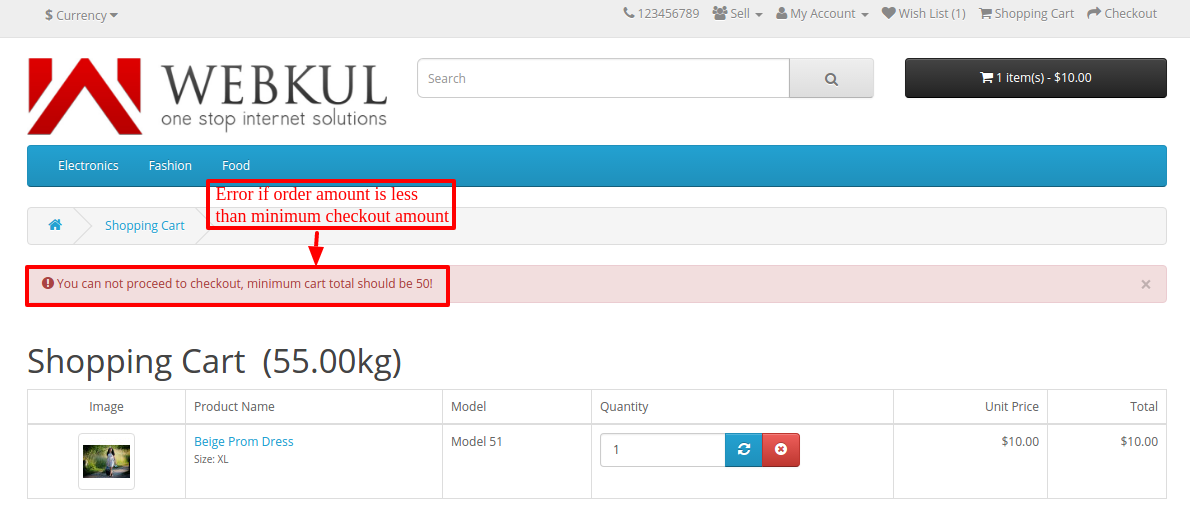
In admin configuration, given an option to set minimum cart value for the checkout. If the amount is less than the minimum cart value then it will give an error “You can not proceed to checkout, minimum cart total should be $xx”.
The admin can set the maximum quantity that will be purchased by each customer for each product while the product has some discount or special price.

The vendor can view the product preview button when the product is disabled or unapproved by the admin. After clicking on it the vendor will redirect to the product page.

The admin has an option for “product quantity required for seller”. If this feature is enabled then the seller must have to assign the category to the product while adding or editing the product.
The admin will get a notification link at the top of their panel. After clicking on this link a notification block will show as below.

The notification tab will be present in the marketplace section for the admin. They will get notification of orders, products, and the seller.
Admin will get order notification of order status change and the new order placed. The admin can filter the notification according to the order of processing, completed, returns.

The admin will get product notification in case of Product approved, out of stock, and new reviews received for the product.
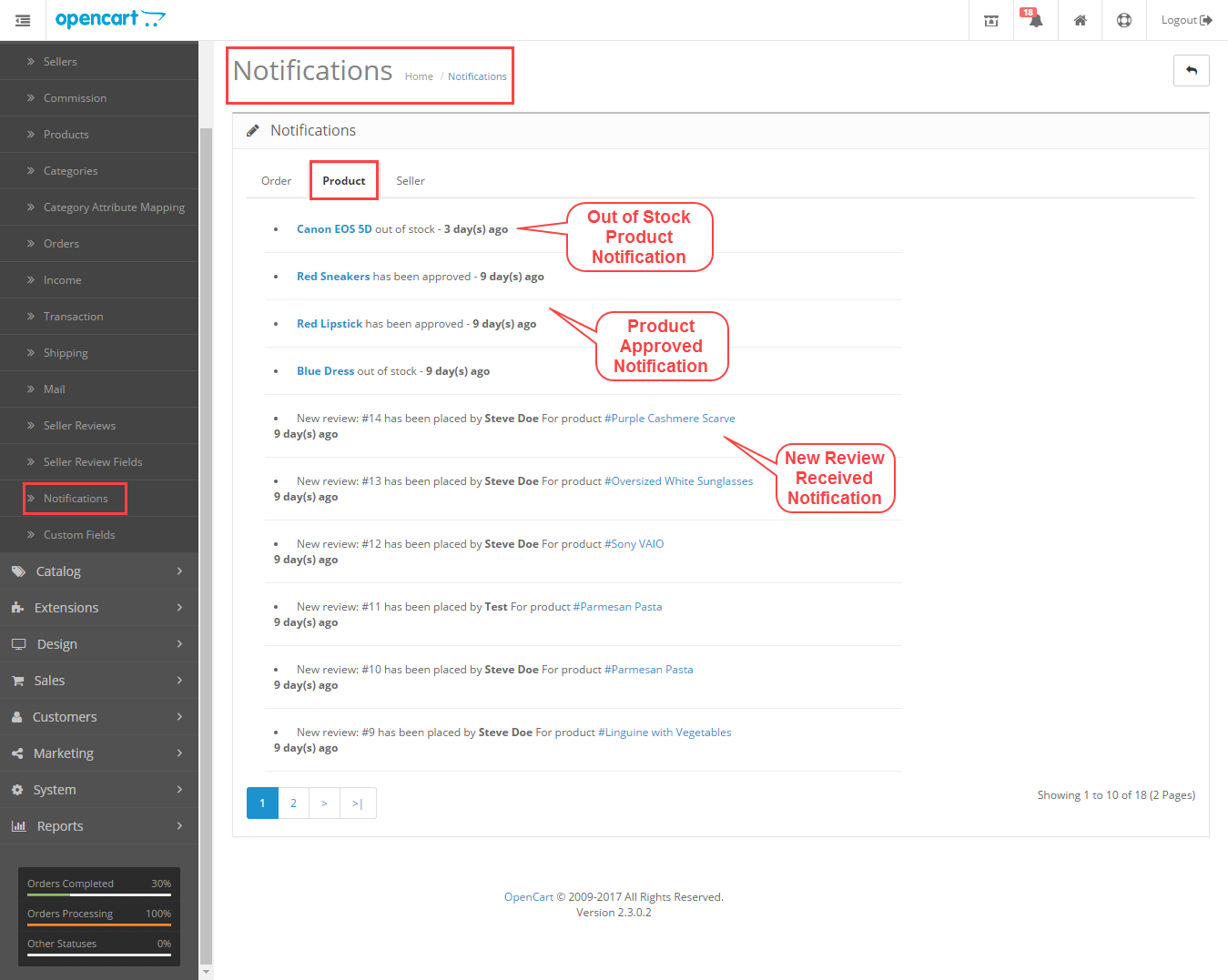
The admin will also get a notification if any review is placed by the customer.

Seller Notification View:
The seller can view the notification top under the sell link. Sellers can view the notification for their orders, reviews, and products.
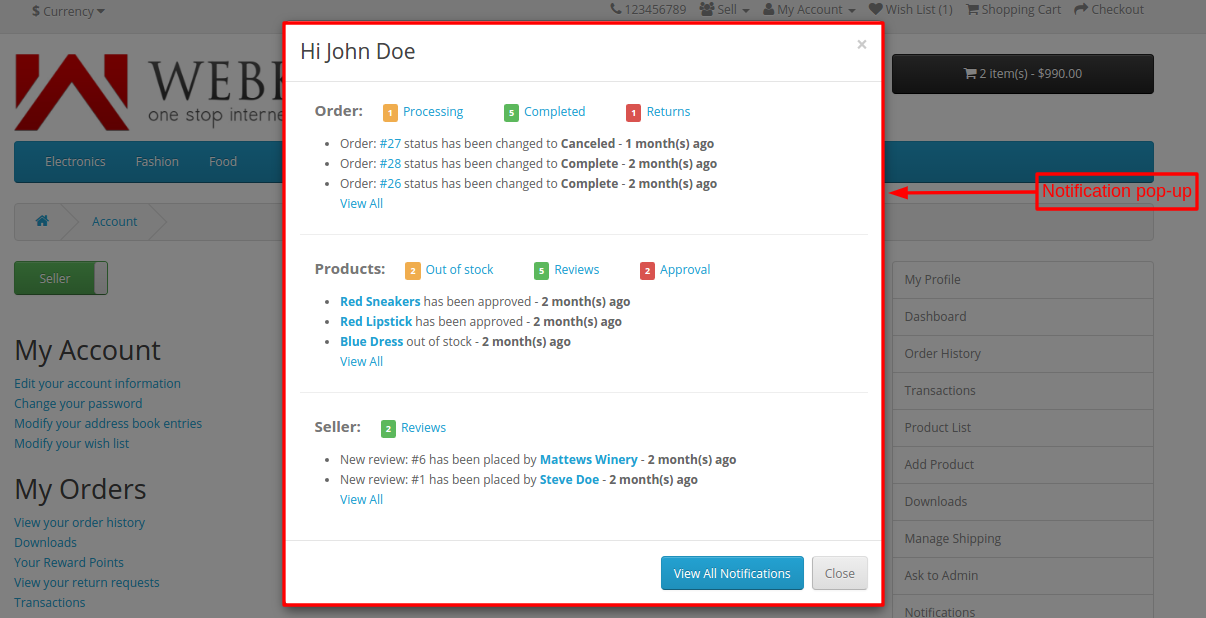
After clicking on “View All Notifications” the seller can view all the following notifications.
The seller will see the notification for order status change, new order, and order returns.
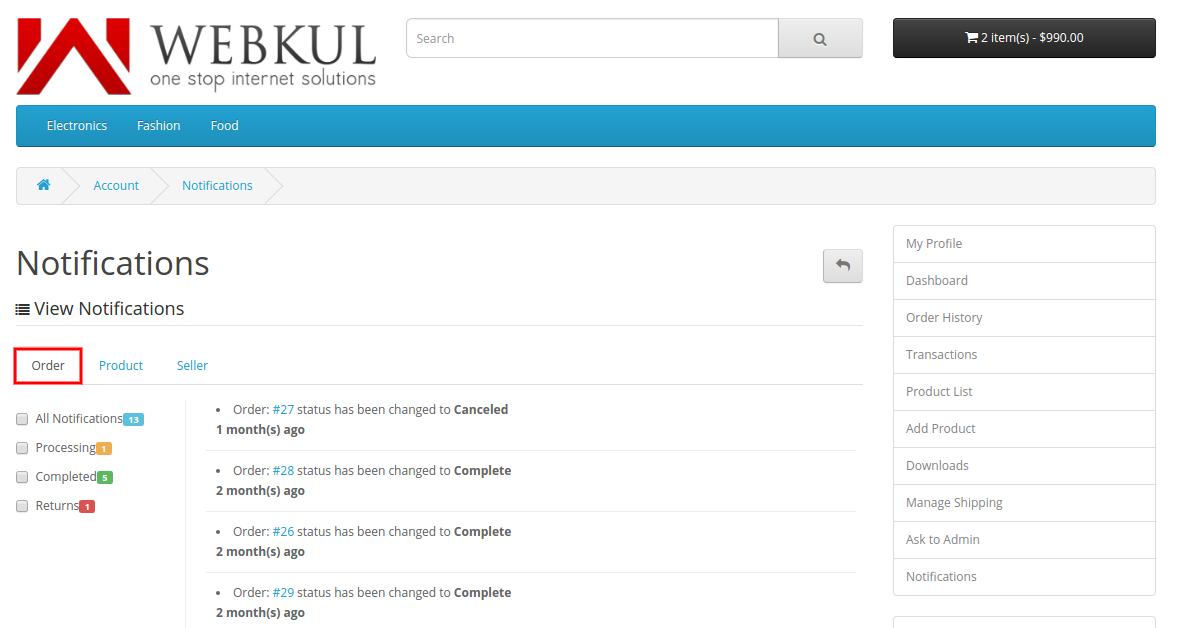
The seller will get the notification when any product is approved or disapproved, got a review for a product, and is out of stock products.

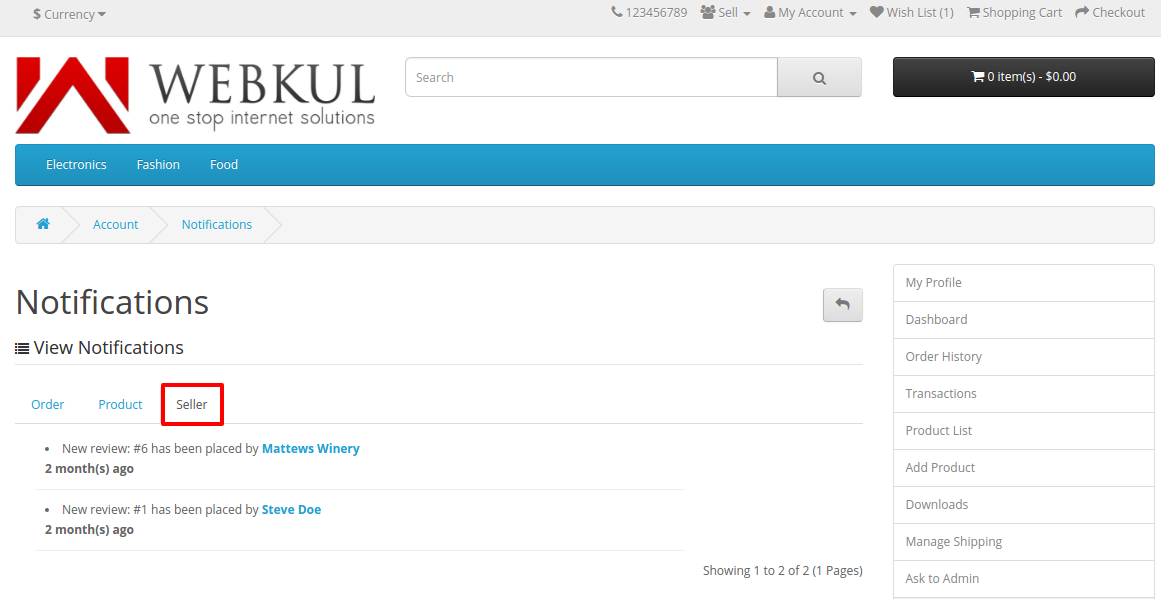
If the customer gives a review to the seller then the seller will get notified of their reviews.
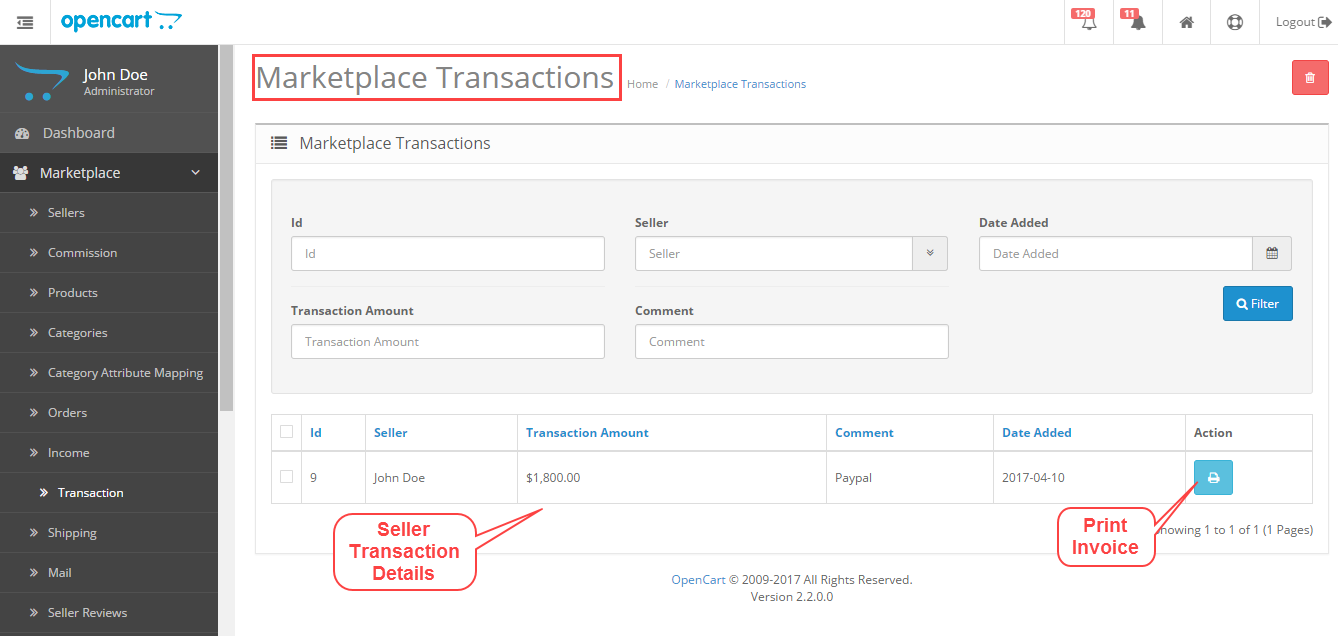
When the admin will pay to the sellers through mass payout then the admin can print the invoice for every PayPal transaction.
That’s all for Updated Features of Opencart Marketplace still have any issues feel free to add a ticket and let us know your views to make the module better contact us.